Create a Google Distribution List
When you log into your Google Apps admin panel, often located here: http://www.google.com/a/domain.com, you'll see a panel like this: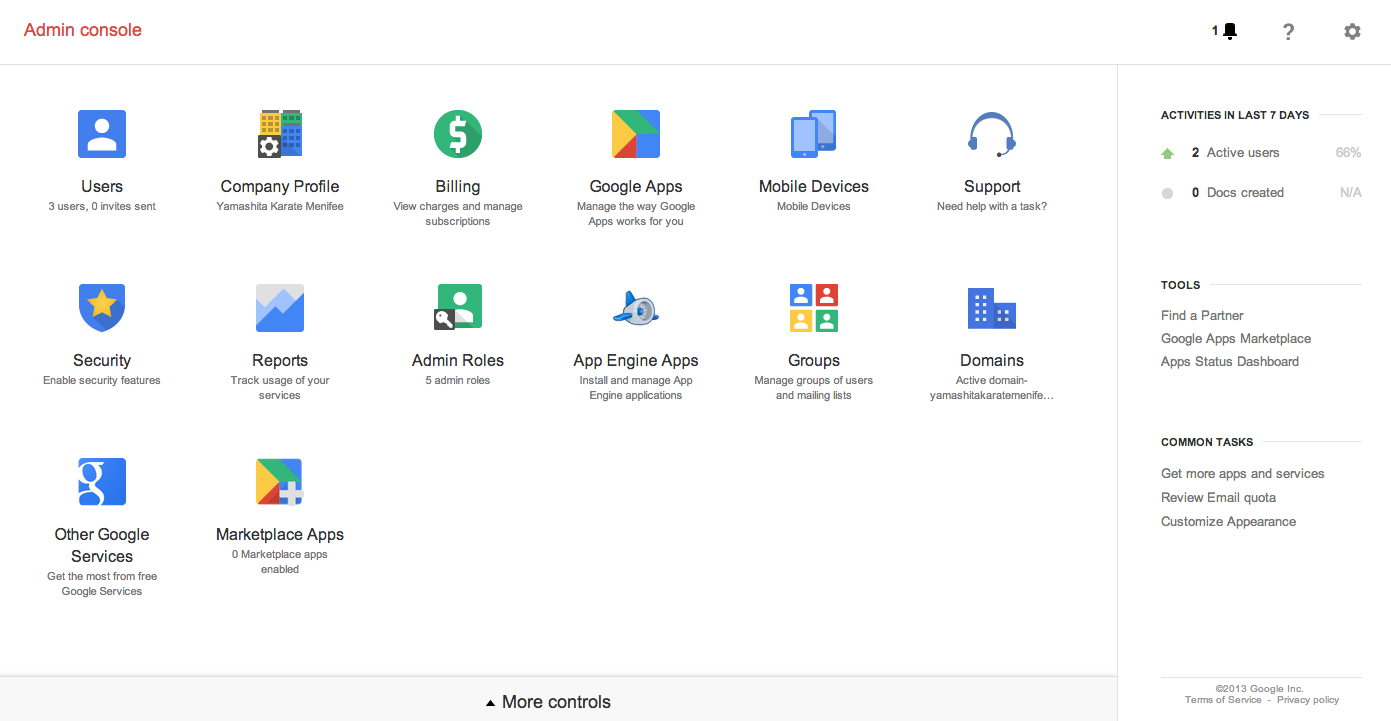
You will need to be an administrator on your domain. You might also not see all theses apps by default. Click on more options, bottom of the image.
Click on the Groups app: This is the create a new group panel:
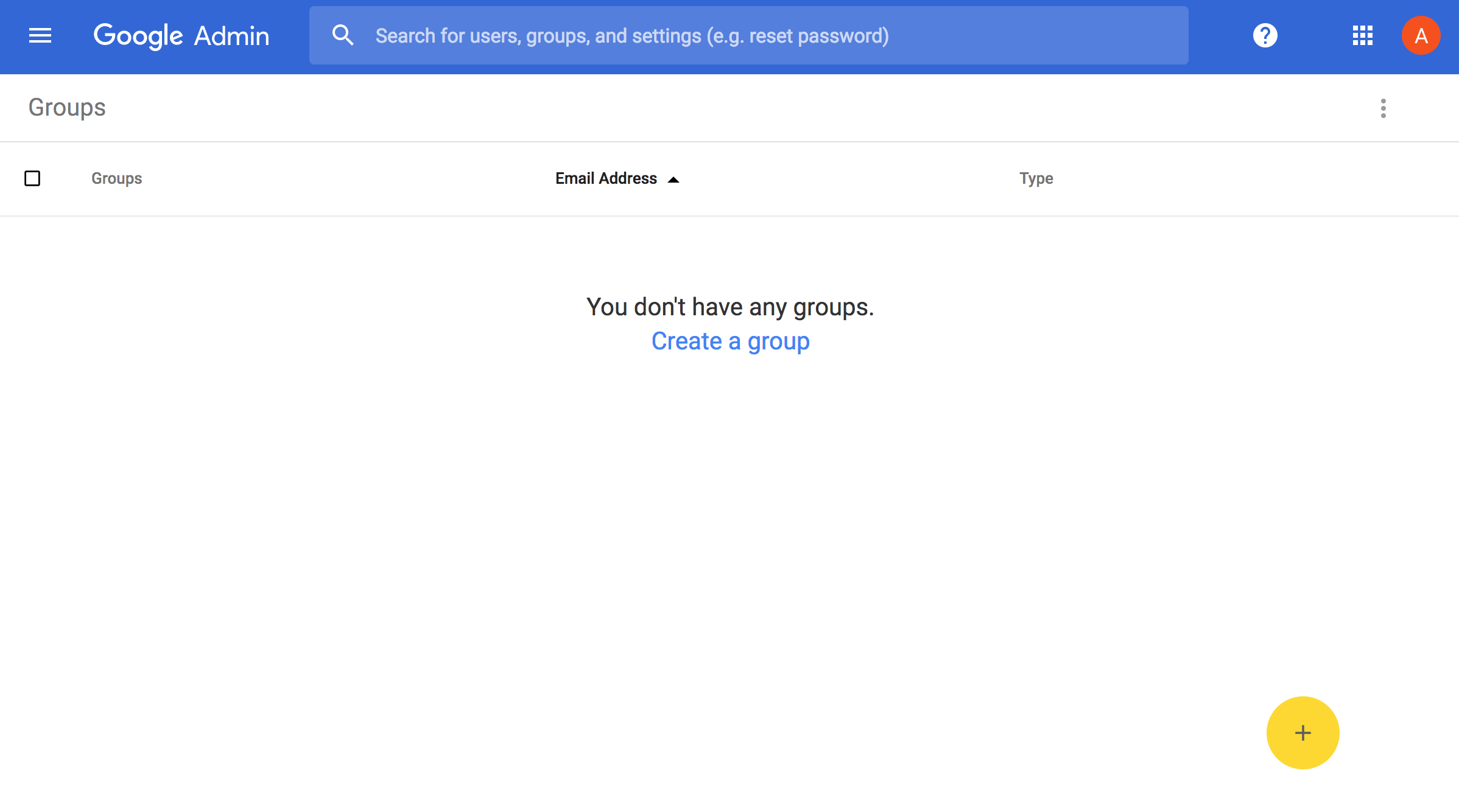 Define the name of the group, and an email to use (e.g., info@domain.com, sales@domain.com, etc.. ). Give it a description. Allow anyone on the Internet to post to the group. This will be important so that if someone sends an email to info@domain.com it doesn't get declined.
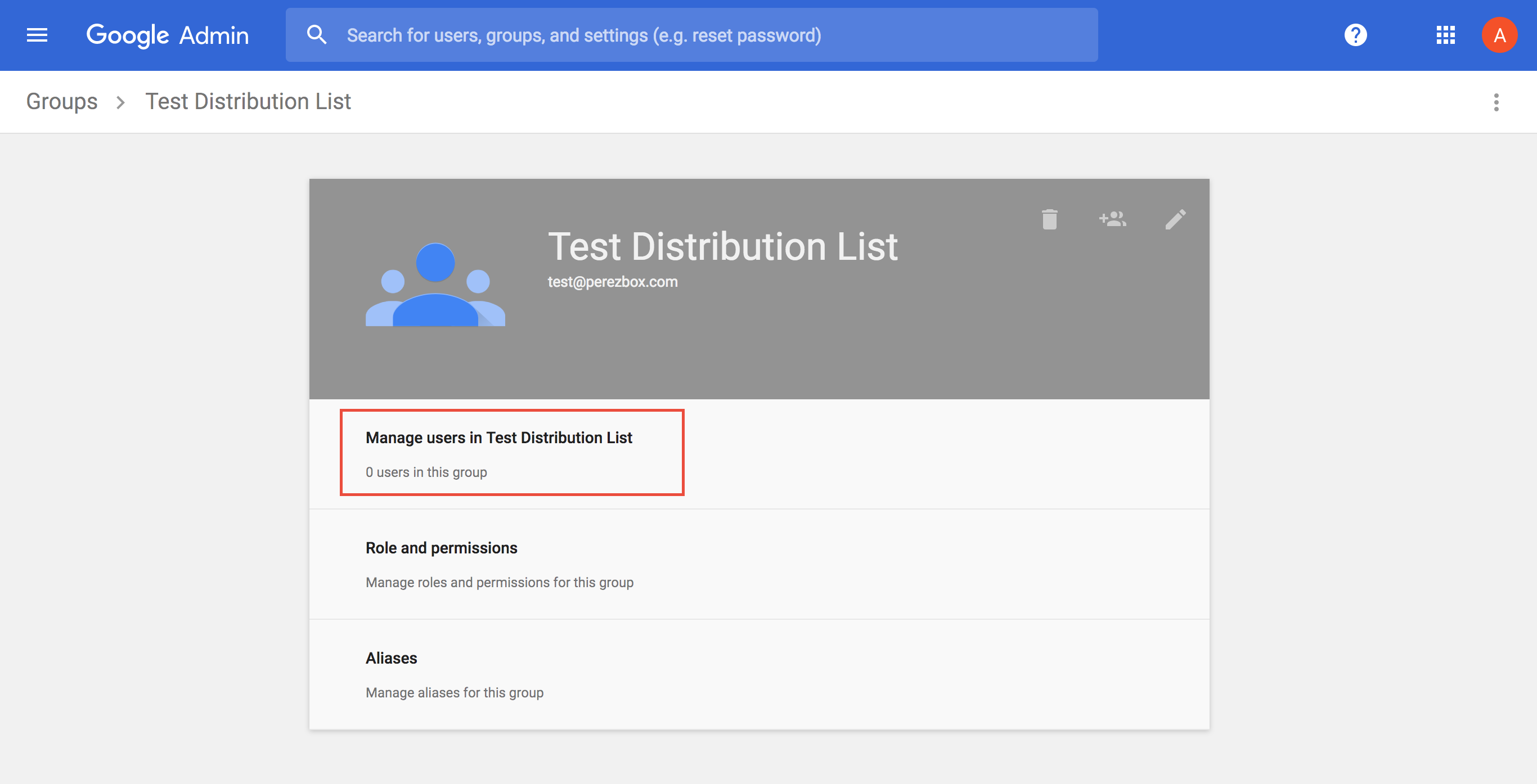
 After creating the distribution list (i.e., be sure to click "create"), you will be in the list settings page. Click on Manage users in Test Distribution List. This will allow you to add users to the list, you'll need to do this if you wish to receive emails when someone sends in an email. Every user on the distribution list will get an email.
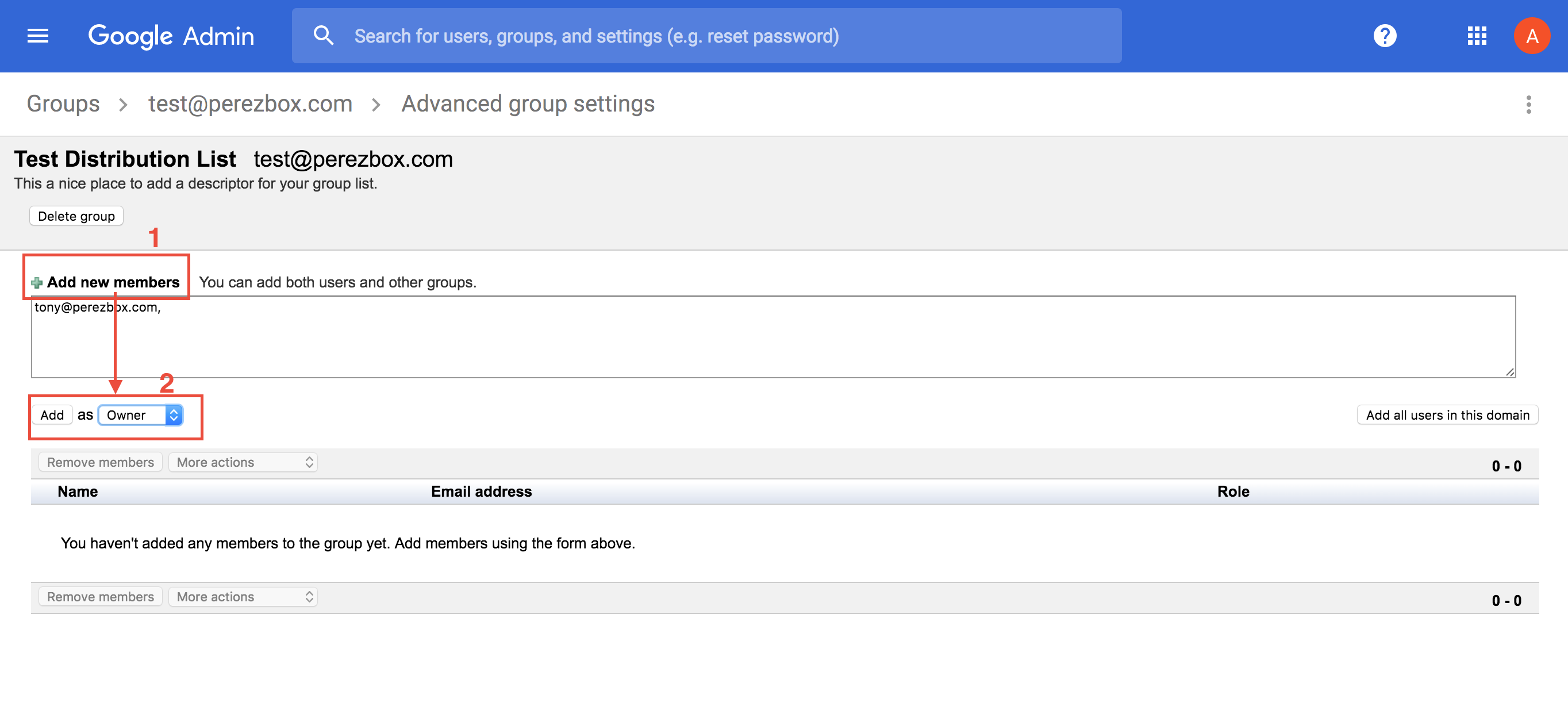
 Click on Add New Members. The email should auto-populate if it's in the domain. Then click on Add as "Owner" or "Member". This is an important step if you want the emails to reach your inbox. You also have the option to add all the users under the domain.
Tip: Don't add everyone as an owner, most will be members unless they truly own the list.
 That's it. You can now use that email as a distribution list. All users in the list will get updates when a user submits an email. Give it a try and let me know how it works.,